Posts tonen met het label SSAS. Alle posts tonen

vrijdag 17 februari 2017

SSAS : Where did my measures go?

Introduction

Currently, developing a Tabular Model in SSDT and somehow I managed to let my measures disappear. What? Yep! This happened me a couple of times now. This blogpost is about the problem and how to solve it.

Situation described

Now it occured when I was entering some measures in SSDT.


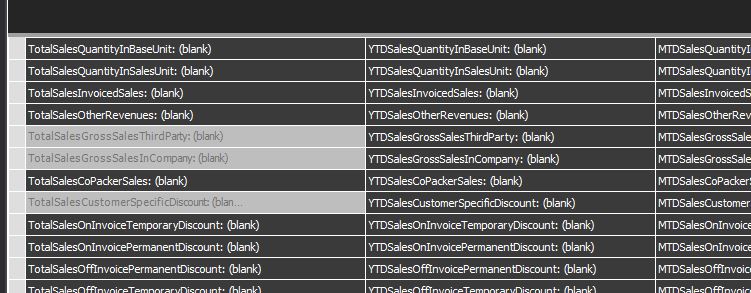
Even though I don't saw the errors in the formulas, a blue mark is show in the tab. A bit annoying and you can't see why it's giving me the error. No measure with error  is shown.


Solution option 1

In the forums of Microsoft someone suggested to delete the layout file in order to get the error measures back. So I did..


When I do that, the erroneous measures are shown again but all the measures are now shown on two rows and it is completely reformatted. 


Not what I want! I have to copy and paste manually the formulas to a format that I appreciate. This is a bit labor intensive when you have a lot of measures.

Solution option 2

Now after investigating the files more closely I opened the bim file. Always make a copy of the file!


And I removed the following snippet (although the warning says that you don't want to change it manually;-) )

       
   <Command>
                  <Text>----------------------------------------------------------
-- PowerPivot measures command (do not modify manually) --
----------------------------------------------------------
CREATE MEASURE 'FactSales'[Copy of PYSalesNetRevenue]=CALCULATE([TotalSalesNetRevenue], FILTER(SAMEPERIODLASTYEAR(DimCalendar[Date]), DimCalendar[Date] &lt;= LASTNONBLANK(DimCalendar[Date], [TotalSalesNetRevenue])));
</Text>
                  <Annotations>
                    <Annotation>
                      <Name>FullName</Name>
                      <Value>Copy of PYSalesNetRevenue</Value>
                    </Annotation>
                    <Annotation>
                      <Name>Table</Name>
                      <Value>FactSales</Value>
                    </Annotation>
                  </Annotations>
                </Command>

That solved my problem. The layout of my measures stayed the same and the wrong measures were removed from the model.


Conclusion

It's possible to let measures disappear from SSDT but with editing the .bim file you can remove the measures.

Greetz,

Hennie

zondag 12 februari 2017

SSAS : Processing a Tabular Model

Introduction

This blogpost is about processing a tabular model in Analysis Services in SQL Server 2014. At first glance, the number of processing options is a bit overwhelming but when you have a certain understanding about the options you get the idea behind it. Although, I've gathered this information for SQL Server 2014, most of it is applicable for other versions as well.

I've read a couple of blogposts about processing a tabular model and most of this blogpost is based on the following blogs:
So all the credits goes the people who wrote these blogs.

Stages of loading data

There are two stages of loading data in a tabular model. First, The xVelocity engine takes each column in each table and builds a dictionary from it. 
Secondly, data recalculation takes place, meaning that the engine populates any calculated columns, hierarchies, relationships and indexes for the database.

Processing options

As said before, SSAS Tabular model comes with a couple of processing options that can be used differently depending on the object you want to process. 


Process Add

With the processing option Process Add it is possible to implement incremental loading of the cube. By defining the rows that are new to the cube, incremental loading of the cube is possible. As Marco Russo is writing in his blog, when executing the Process Add option, the SSAS engine will create a new partition and this is merged with the existing partition.

An effect of the Process Add is that automatically recalculates the affected objects.

Process Clear

Process Clear drops all the data in a database, table, or partition. Is there more to say;-)


Process Data

Process Data loads data into a partition or a table. It reads the data and it builds dictionaries, but doesn't process any calculated columns, indexes, relationships or hierarchies. Therefore it's required to perform a Process Recalc after all tables' dictionaries have been updated using Process Data.


Process Default

Process Default loads data into unprocessed partitions or tables. Any affected calculated columns, relationships, user hierarchies, or internal engine structures (except table dictionaries) are recalculated. It recalculates the affected objects (and only the affected objects).


Process Defrag

Process Defrag optimizes the table dictionary (an internal engine structure) for a given table or for all tables in the database. This operation removes all dictionary entries that no longer exist in the data set and rebuilds the partition data based on the new dictionaries.

If you often add or remove partitions from a table, or if you often reprocess individual partitions in a table, you should Process Defrag regularly but carefully. 

Process Defrag may be an expensive operation for a large table.

If you Process Data on a table level, it is never necessary to do a Process Defrag

Run Process Recalc after running Process Defrag.

Process Full

Process Full loads data into all selected partitions or tables. Any affected calculated columns, relationships, user hierarchies, or internal engine structures (except table dictionaries) are recalculated. It recalculates the affected objects. Process Full runs a Process Data on the table or partition, followed by a Process Recalc.


Process Recalc

For all tables in the database, recalculates calculated columns,  Process Recalc rebuilds relationships. rebuilds user hierarchies, and rebuilds other internal engine structures. Table dictionaries are not affected.

Process Recalc is always the last thing you do, and you can batch up as many processing operations as you want before issuing that last Process Recalc.

Keep in mind that you can only issue Process Recalc at the database level. This means that after a Process Data operation on a dimension, you may be stuck recalculating a large fact table when it was not impacted by the initial processing operation.


Processing scenarios

I've read a couple of interesting options for loading the tabular model. 


1) Full load
With Process Full you can perform a full load of the database, partition or a table. It will drop all of the data and then it will process the object. This can become handy for an initial loading of the cube or in case of a structural change of an object in the cube or the cube itself. In that case, you need to redeploy the cube and perform a Process Full of the cube.

2) Incremental processing
Two options:
  • 1) Create a new partition and then use Process Data to populate it. This new partition can then be merged with an existing partition if you like.
  • 2) Use Process Add to add data to the existing partition. If used make sure that you don’t add duplicate rows. 
          Two options:
    • Change the partition definition to the query that returns the set of rows you want returned by the incremental processing operation. 
    • If your partition definition is based on a view, make sure that the view on the original data source now returns just the set of rows you want returned by the incremental processing operation.

3) Semi-incremental processing
Yet another option is to create a partition for a year or a month in a table and process that with a Process Data. This will limit the data loading significantly but it 's simple but effective.

No matter how you do incremental processing, you must Process Recalc on the database afterwards before moving on with your life. If you do this enough, you’ll want to Process Defrag too.


Greetz,

Hennie


dinsdag 14 april 2015

Some features of SQL Server Data Tools

Introduction

Today a post about SSDT (SQL Server Data Tools) and this tool is the replacement of BIDS and Database Developer (or Data Dude). There are two tastes of SSDT: SSDT-BI and SSDT-DB. Both have to be installed seperately and that's very confusing. But once you know what's going on there are no problems anymore. SSDT-DB is the evolution of  "Visual Studio Team System Edition for Database Professionals" and this project was the baby of Gert E. Drapers that gave it its more common name, "Data Dude".

There seems multiple versions of SSDT around and I've found these versions of SSDT of the last years.
  • 2014 January update.
  • 2014 July update.
  • 2015 February update.

There are two versions available:
  • Visual Studio 2012.
  • Visual Studio 2013.
The ultimate goal of SSDT is to create a more integrated development environment. Traditionally, database development has often been done outside of Visual Studio, for instance in SQL Server Management Studio. With SSDT, database development is instead done inside Visual Studio. Databases are included as projects in the Visual Studio solutions.


What is SSDT?

This tool is the single environment for writing DB code as well as BI development. There is no need to switch between  SSMS and SSDT. You can write all the code in Visual Studio 2012 or 2013. There is now a clear distinction between a developer environment and a DBA environment. SSMS is more about managing SQL Server and databases. There are two modes possible:
  • Disconneted mode.
  • Connected mode
    • On premise.
    • Off premise.
There is a local database for developers and this comes in handy because developers don't need a connection to a live database. so you write code in a declarative manner and you don't need to worry(?!) about implementing these chnges on a database.


Normally, until you had SSDT, you would write code with SSMS in a development environment. When you needed to deploy the code to another environment you had to remember or compare the versions with TFS and then create change scripts for the other environment. With SSDT you don't need that anymore. SSDT does that for you.

Options

There are multiple ways to start a project with SSDT:
  • Start from scratch with a project in SSDT
  • Import the code from a current database into SSDT project.
  • Import from a .dacpac file
  • Import a from scriptfiles. 
In the following tutorial I will show some simple steps importing the code from an existing database into a project in SSDT. This is the DB part of SSDT.

Import the code from a current database into SSDT project

1. First start SSDT and start a new project and you'll see the following window. Here you can see the distinction between BI and DB.


2. Export the Data-tier Application from the database by right clicking on the specific database, press Tasks and Export Data-tier Application.

3. Press Next.


4. Save the file to a local disk by clicking on Browse


5. Choose the location and press Save.


6. Press Next.


7. Choose the database objects and press Next


8. Now we have the summary window. Press Finish.


9. Errors appears and why is that?


There seems a lot of errors in export of the database to the bacpac file, unfortunately. The errors are static and you can do anything about it. Below,  I copied the most common errors that apeared in the error list

The element Extended Property: [dbo].[ufnGetCustomerInformation].[@CustomerID].[MS_Description]

The element Extended Property: [SalesLT].[SalesOrderDetail].[IX_SalesOrderDetail_ProductID].[MS_Description] is not supported

The element XML Schema Collection: [SalesLT].[ProductDescriptionSchemaCollection] is not supported

Element Column: [SalesLT].[Address].[AddressID] has an unsupported property IdentityIsNotForReplication

 Element Column: [SalesLT].[Address].[rowguid] has an unsupported property IsRowGuidColumn set 

Table Table: [dbo].[BuildVersion] does not have a clustered index.  Clustered indexes are required for inserting data in this version of SQL Server.

Element User: [NT AUTHORITY\NETWORK SERVICE] has an unsupported property AuthenticationType set and is not supported when used as part of a data package.   


When searching the internet I found this helpful article on SQL Server Data Tools Team Blog. It seems that there is another way of importing the database into SSDT-DB. And that is with SSDT-DB itself.

10. Select the specific database and right click on Create New Project


11. Set the Target name and click on Start


12. The export is running


13. And, the project is created based on the AdventureWorks2012LT database.


Refactor the database

Refactoring the database is one of the things that needs to be done. Objects needs to be changed when the world around us changes and database needs to evolve with that. Let's try to refactor a field in table in the AdventureWorksLT2012 database.

14. Let's try to change the CompanyName in the Customer script to Company and try to publish this to the database. We do this by right clicking on the CompanyName and press Refactor. Change the name to Company.


15. Here you can see the changes and the press Apply


16. The next thing is to publish the changes to the database. You do this by right clicking on the Project and press Publish.


17. After some time of processing the changes are processed and the database is in the new state.


Snapshot the project

It's also possible to snapshot your project in dacpac files. These files contains your scripts saved at a certain point in time. This will help you save the projects at important points in time.


18. Right click on the project and click on Snapshot Project.


19. And the snapshot is saved under Snapshots.


Using References

If your database references other databases, you'll need a dacpac file for each external database referenced in your code. References can be resolved for objects in one of the following locations:

  • In the referencing database.
  • In a database other than the referencing database, but on the same server.
  • In a database other than the referencing database, on a different server.

In this blogpost, I've choosed to use "In a database other than the referencing database, but on the same server".

Suppose you have a stored procedure in a project that references a table in an other database (e.g. TestDB). Then the following error is shown in SSDT. You need to create a Database reference to the project.


22. Add a Database Reference to the project by right clicking References and Add Database Reference.


23. First extact a dacpac from the database in SSMS and store that on a central place and press Next.


24. Select that dacpac file from the central place in your project.


25. Replace the database name by the Database Reference.


25. Now if you want to publish this to the database, the values of the Database Reference can be set.


Here you can set the value for the Database reference.

Conclusion

SSDT is logical evolution in Database and SSIS, SSRS and SSAS design. I'm very happy with the development environment for SQL Server where you have an integrated approach. There is a clear distinction between DBA and Developer work.

Other references

maandag 1 december 2014

SSAS SSRS : Bad Performance SSRS parameters and SSAS

Introduction

SSRS Reporting parameters and SSAS cubes......There is a lot to read about on the internet about the bad performance of  parameters that are generated by Reporting Services based upon a SSAS Cube. Today, I've ran into this problem too. I've a parameter with a dataset that queries a customer table of about 40000 records. Peanuts for a simple SQL query, but not for a SSAS cube (pfffff). And, I'm not the only one who has encountered this problem. You can read hundreds of blogposts, forumposts and more. This is one blogpost more about this bad cooperation between SSRS and SSAS.

The lab situation is this: we have a main report with a customer parameter and a sub report. I want to pass a Customer list via the parameter to the subreport in order to show detailrecords. In my real word example a map is shown and clicking on a area on the map shows the detail records that belong to a region.

Analyzing the parameter performance problem

The initial problem of a parameter with 40000 records is simple. It doesn't perform! I will show you what kind of issues rise when you create a parameter with 40000 records.  First create a dataset with a parameter "Customer" by checking the parameter option in the query window.


A parameter dataset is created (you can't see that because it's hidden). Choose for "Show hidden datasets". If you run the report, you'll notice that the performance is bad..very bad. When you open profiler to take a look at what is happening during cube querying a lot of serialize events happen and these happen often (per 1000) and these are sloooowwww. The serialize results current is a very slow process. So processing the query is very fast but serializing the result for the Report is slow.


If you take a look at this diagram, you can see that the serialize is done from the Compute Cell data part and it's transferred to the client application.


Now, I haven't found a silver bullet unfortunately. But Chris Webb helped me a bit further. In his blogpost, Chris Web explains this problem a bit further and he gives a solution. Well, sort of but I'll explain this later. Suppose you add a parameter to a dataset according to the following screenshot. 


Then a parameter is automatically created with a dataset:


And, the query in this dataset looks like this:

 WITH 
  MEMBER [Measures].[ParameterCaption] AS [Customer].[Customer].CURRENTMEMBER.MEMBER_CAPTION 
  MEMBER [Measures].[ParameterValue] AS [Customer].[Customer].CURRENTMEMBER.UNIQUENAME 
  MEMBER [Measures].[ParameterLevel] AS [Customer].[Customer].CURRENTMEMBER.LEVEL.ORDINAL
 SELECT 
 {[Measures].[ParameterCaption],
  [Measures].[ParameterValue], 
  [Measures].[ParameterLevel]} ON COLUMNS , 
 [Customer].[Customer].ALLMEMBERS ON ROWS 
 FROM [Adventure Works]

According to Chris Webb  you can replace this query by an OLEDB query. This query performs much faster than the generated query by SSRS.

WITH
 MEMBER MEASURES.DUMMY AS NULL
SELECT
{MEASURES.DUMMY}
ON COLUMNS
, [Customer].[Customer].ALLMEMBERS
DIMENSION PROPERTIES UNIQUE_NAME, MEMBER_CAPTION, LEVEL_NUMBER
ON ROWS
FROM [Adventure Works]
CELL PROPERTIES VALUE

This speeds up the loading the data into the parameter.

Invalid URI : The URI String is too long 

The next problem I had was that I got an error when I call a subreport with the same parameter. It seems that there is limitation of 65520 characters that you can pass with a parameter. This is the error:


A limitation of the number of characters that can be passed through a subreport. Theo Lachevs explains why. There are a couple of options. The best option is to limit the number of characters of the parameter that are passed to the subreport. This is not perfect because of growing the amount of the data somewhere in the future you'll run into problems again and you can't solve it anymore.

Okay, how do we limit the number of characters that are passed to the subreport? Well, Erika Bakse showed in het blogpost a way to limit the number of members. In this example I've created a main report and a subreport. The main report has a Customer parameter that lists customers

For this blogpost I've created a simple report with a Tablix. On the Textbox Properties I've created an Action with an expression.


This is the expression that is passed to the subreport:

=Join(Parameters!CustomerCustomerName.Label, "],")


This is the output of the expression:


And this expression is without the full membernames and therefore compacted. In the parameter of the subreport this is one large string:


With the following expression you can change these CSV separated string into full membernames:

="[Customer].[Customer Name].&[" + REPLACE(Parameters!Customer.Label(0) + "]", "],", "],[Customer].[Customer Name].&[")

Shown below:

The output of the expression is this:


And now we can pass this to a dataset and filter the records with this list.

Conclusion

This URI problem happens quite often. I encountered this problem on numerous environments with SQL Server 2008, SQL Server 2008 R2 and SQL Server 2012 in different situations. I've also encountered different behaviour between SSRS, Report manager and Reportbuilder.

Greetz

Hennie


dinsdag 7 oktober 2014

SSAS : The ID does not have a 'Database' parent Error

Introduction

Today,  I had a 'great' idea adding a cube in SQL Server Analysis Services (SSAS) to an existing project for testing purposes. I ran into some strange errors : "The  <ID> does not have a 'Database' parent" Error. Also, a red cross in the cube icon in the solution explorer was visible. In this blogpost I'll show the errors, the possible cause and how to fix this..

The <ID> does not have a 'Database' parent Error

So, the following happened to me today. I added a cube that I copied earlier from the same project to an existing project. Below a screenshot of visual Studio (SSAS) of the error:


The red cross in the cube icon


I solved this error by renaming the ID the cube (xml file). The name was already used by another cube in the project. You do this by right clicking on the .cube file in the solution explorer, right click on view code and enter another ID in the XML file. Next step is saving the file and close the XML file.


I don't know if there is another solution. The ID in the properties of cube is greyed out and cannot be changed. I didn't encounter any problems after changing this in the cube. If you experience strange behaviour, let me know..

Conclusion

In this blogpost I've changed the ID in the XML Code of .cube file in order to avoid the  "The <ID> does not have a 'Database' parent" Error.

Greetz,

Hennie

donderdag 2 oktober 2014

SSAS : Multicurrency Problem (Part III)

Introduction

I wrote two blogposts about the multicurrency problem in SSAS. The first blogpost (Part I) was about the multicurrency solution and is mainly inspired by the book of "Expert Cube Development with SQL Server 2008 Analysis Services" by Chris Webb, Alberto Ferrari and Marco Russo. In the second blogpost (Part II) further improvements were implemented. In this blogpost I'll bring the solution a step further.

Chris Webb wrote in his blogpost "Tuning the Currency Conversion Calculations created by the Add Business Intelligence Wizard" that the "Add Business Intelligence" Wizard is a missed opportunity from Microsoft. He is saying that because the idea is great, simplifying the difficult stuff of SSAS, but the generated MDX script in SSAS is bad implemented.

Improving the Multicurrency problem a step further

In this blogpost won't  describe step by step the complete solution. I'll start with the solution that ended in my second blogpost about MultiCurrency.  In this third blogpost I'll work out the solution that is proposed by Chris Webb in his blogpost.

The business Intelligence Wizard adds a named query in the datasource view, adds an extra dimension to the cube and adds some MDX script to the cube. The following situation could is a typical many-2-many conversion example.

The datasource view:


The dimension usage tab in the cube:


The MDX script calculation in the calculation tab:

 Scope ( { Measures.[Amount]} );
   Scope( Leaves([DimDate]) ,
    [Reporting Currency].[EUR], 
    Leaves([DimCurrency]));


        // Convert Local value into Pivot currency for selected Measures that must be converted with Measure rate [Rate] 
        Scope( { Measures.[Amount]} );
            
         This = [Reporting Currency].[Local] * Measures.[Rate];
 
        End Scope;
 

   End Scope; 
  
   // This is the One to Many section
   // All currency conversion formulas are calculated for the non pivot currency and at leaf of the time dimension 
            Scope( Leaves([DimDate]) ,  
    Except([Reporting Currency].[Currency Name].[Currency Name].Members, 
    {[Reporting Currency].[Currency Name].[Currency Name].[EUR],
    [Reporting Currency].[Currency Name].[Currency Name].[Local]}));


      // This section overrides the local values with the Converted value for each selected measures needing to be converted with Measure rate [Rate]… 
      // LinkMember is used to reference the currency from the source currency dimension in the rate cube. 
         Scope( { Measures.[Amount]} );
             This = [Reporting Currency].[Currency Name].[EUR] / (Measures.[Rate], LinkMember([Reporting Currency].[Currency Name].CurrentMember, [DimCurrency].[Currency Name])) ;
      End Scope; 
 
  
   End Scope; // Leaves of time, all reporting currencies but local and pivot currency 
  End Scope; // Measures

  // End of the currency conversion wizard generated script  


Okay let's summarize the settings that has been set so far (from my former posts):
  • Property Type of Currency dimension to Currency
    • Property Attribute Type of  CurrencyName to Currency > Currency > Currency ISO Code.
    • Property Attribute Type of month to Date > Calendar >Month Of Year
    • Property IsAggregatable of the attribute Currency Name to False. 
    • Property Usage to key of the attribute Currency Name.
    • Property KeyColumns to Currency ID.
    • Property NameColumn to Currency Name.

  • Property Type of Date dimension to Time
    • Property Attribute Type of  Day to Date > Calendar > Day of Week.
    • Property Attribute Type of Month to Date > Calendar >Month Of Year

  • Property of the MeasureGroup FactEchangeRate to ExchangeRate.

Now, new settings introduced for this blogpost (or described) in this blogpost:
  • Property Formatstring of the Measure Amount to Currency.
  • Measure Rate is semi additive and therefore set the property Aggregatefucntion to "Last Non Empty". For instance If we want to see the Exchange rate for a week we don't want to see the sum of the Exchange rates of that week but the most recent exchange rate of the week.
  • Add to the calculation tab:
    • Language([DimCurrency].[Currency Name].[EUR]) = 1043;
    • Language([DimCurrency].[Currency Name].[GBP]) = 2057;
    • Language([DimCurrency].[Currency Name].[MEX]) = 2058;
    • Language([DimCurrency].[Currency Name].[USD]) = 1033;
There are also better solutions by making this a variable solution by storing this information in the currency dimension table and use them by the Value column or the Member property. I'll investigate this in the future.

Now we are going to adjust the solution with the improvement of Chris :

1. Go to the DataSource View in the Solution explorer of the project in Visual Studio

2. Create a named query "Reporting Currency Rates" in the data source view. With the following query :

     SELECT        CurrencyRate_ID, Date_ID, Currency_ID, Rate
     FROM            dbo.FactCurrencyRate

3. Create a relationship between Date and the new created named query  "Reporting Currency Rates"

4. Create a relationship between Reporting Currency and the new created named query  "Reporting Currency Rates". The Data source view would look like this now:


5.  Create a new measure group "Reporting Currency Rates" by clicking on the Cube Structure Tab.

6. Right click on the Cube (MultiCurrencyV3Redo in my case) and create a new measure group.


7.  Adjust the dimension Usage Tab according to the following screenshot:


8. Now go the Calculations tab and replace the following code:

  Scope ( { Measures.[Amount]} );
   Scope( Leaves([DimDate]) ,
    [Reporting Currency].[EUR], 
    Leaves([DimCurrency]));


        // Convert Local value into Pivot currency for selected Measures that must be converted with Measure rate [Rate] 
        Scope( { Measures.[Amount]} );
            
         This = [Reporting Currency].[Local] * Measures.[Rate];
 
        End Scope;
 

   End Scope; 
  
   // This is the One to Many section
   // All currency conversion formulas are calculated for the non pivot currency and at leaf of the time dimension 
            Scope( Leaves([DimDate]) ,  
    Except([Reporting Currency].[Currency Name].[Currency Name].Members, 
    {[Reporting Currency].[Currency Name].[Currency Name].[EUR],
    [Reporting Currency].[Currency Name].[Currency Name].[Local]}));


      // This section overrides the local values with the Converted value for each selected measures needing to be converted with Measure rate [Rate]… 
      // LinkMember is used to reference the currency from the source currency dimension in the rate cube. 
         Scope( { Measures.[Amount]} );
             This = [Reporting Currency].[Currency Name].[EUR] / (Measures.[Rate], LinkMember([Reporting Currency].[Currency Name].CurrentMember, [DimCurrency].[Currency Name])) ;
      End Scope; 
 
  
   End Scope; // Leaves of time, all reporting currencies but local and pivot currency 
  End Scope; // Measures

  // End of the currency conversion wizard generated script 
 // </Currency conversion> 

By this code :

       Scope ( { Measures.[Amount]} );
    Scope([DimDate].[Date ID].[Date ID].MEMBERS);
      Scope([DimCurrency].[Currency Name].[Currency Name].MEMBERS);
   Scope(Except([Reporting Currency].[Currency Name].[Currency Name].Members, 
    {[Reporting Currency].[Currency Name].[Currency Name].[Local]}));
 
       THIS = IIF([Measures].[Rate - Reporting Currency Rates] = 0, NULL, 
                    IIF([Measures].[Rate] = 0, NULL, 
                        ([Measures].[Amount] *[Measures].[Rate])) / [Measures].[Rate - Reporting Currency Rates]);
        
        End Scope;
       End Scope; 
      End Scope; 
    End Scope;


Now let's take a look at the result:


Conclusion

In this blogpost I've discussed an improvement of the multicurrency problem. This is the third blogpost about multicurrency.

More information available....

There is more information available at the following pages: