zondag 25 oktober 2015

SQL : Sharing tables among different databases (Cross-Database Ownership Chaining)

Introduction

In a former blogpost of mine, I've described the working of ownership chaining, but this works only within a database and not between databases. In case you have multiple database, a more sophisticated approach is needed. There are several options like using TRUSTHWORTHY or certification of database objects, but I've focused on the option Cross-Database Ownership Chain in this blogpost. The reason I want to use this, is because I've several databases for a datawarehouse and I want to configure the security of some data in a so-called meta database and I don't want to let the end users looking in this 'system' database. That's why I'm investigating Cross-database Ownership Chaining.

Cross-Database Ownership Chains

As seen on SQLServerCentral Cross-Database Ownership chains are an extension of ownership chains where the objects calling and the called object resides in the same database. The only difference is that cross-database ownership crosses database boundaries. In my scenario, I evaluate the current user with USER_NAME() in a view against a table in an other database. My situation would be something like this.  


Let's see what happens when we try to query a view in a database that references a table in another database. We use the same script as in my former post about ownership chains and adjust this to a script where we have two databases. Now, let's test cross-database Ownership chaining. Let's start simple and see whether the following situation works.


Preparation

Here are the preparation scripts that I've used for testing the different scenarios. So again I've a View vwBla in CrossDatabase A that queries a table in CrossDatabaseB.


-----------------------------------------------------------------------
-- 1. Create the necessary logins.
USE [master]
GO

DROP LOGIN [WIN-QTLB6QR5HC9\TestUserA]
GO

CREATE LOGIN [WIN-QTLB6QR5HC9\TestUserA] FROM WINDOWS WITH DEFAULT_DATABASE=[master], DEFAULT_LANGUAGE=[us_english]
GO

-----------------------------------------------------------------------
-- 2. Create database
USE master
GO 

DROP DATABASE [CrossDatabaseA]
GO 

CREATE DATABASE [CrossDatabaseA]
GO

DROP DATABASE [CrossDatabaseB]
GO 

CREATE DATABASE [CrossDatabaseB]
GO
-----------------------------------------------------------------------
-- 3. Create the table.

USE [CrossDatabaseB]
GO

/*
DROP TABLE [dbo].[tblBla]
GO
*/

CREATE TABLE [dbo].[tblBla](
 [bla] [nchar](10) NULL
) ON [PRIMARY]

GO

INSERT INTO [dbo].[tblBla]
           ([bla])
     VALUES
           ('blaaaaaaa')
GO
-----------------------------------------------------------------------
-- 4. Create the view.
USE [CrossDatabaseA]
GO

/*
DROP VIEW [dbo].[vwBla]
GO
*/

CREATE VIEW  [dbo].[vwBla] AS 
SELECT * FROM CrossDatabaseB.dbo.tblBla
GO

-----------------------------------------------------------------------
-- 5. Setup the users.
USE [CrossDatabaseA]
GO

CREATE USER [WIN-QTLB6QR5HC9\TestUserA] FROM LOGIN [WIN-QTLB6QR5HC9\TestUserA]
GO

CREATE USER [WIN-QTLB6QR5HC9\TestUserB] FROM LOGIN [WIN-QTLB6QR5HC9\TestUserB]
GO

GRANT SELECT ON [vwBla] TO [WIN-QTLB6QR5HC9\TestUserA]
GO


USE [CrossDatabaseB]
GO

CREATE USER [WIN-QTLB6QR5HC9\TestUserA] FROM LOGIN [WIN-QTLB6QR5HC9\TestUserA]
GO
 

Now I'm doubting about that I've to give access to the CrossDatabaseB in order to make this work and I don't really want this (in my real world situation). I don't want to even want the enduser know there is a CrossDatabaseB. But I haven't seen and found a solution with Cross Database Ownership chain that this supports. Please leave a comment below if you know how.

1. Test the initial setup for TestUserA

In this scenario I've tested whether the TestUserA has access to the View and the underlying table (that resides in the other database).

-----------------------------------------------------------------------
-- 1. Test the setup for TestUserA
USE [CrossDatabaseA]
GO

EXECUTE AS USER = 'WIN-QTLB6QR5HC9\TestUserA';
GO

SELECT * FROM dbo.[vwBla]
GO

SELECT * FROM CrossDatabaseB.dbo.[tblBla]
GO

SELECT User_name()

REVERT;
GO

And this results in :

Msg 916, Level 14, State 1, Line 2
The server principal "WIN-QTLB6QR5HC9\TestUserA" is not able to access the database "CrossDatabaseB" under the current security context.
Msg 916, Level 14, State 1, Line 2
The server principal "WIN-QTLB6QR5HC9\TestUserA" is not able to access the database "CrossDatabaseB" under the current security context.

Well, this result is different from the test I've done in the former blogpost. So, the ownership chaining does not work anymore, although the same user(?) is present in both databases. In order to make sure that it really does not work I tried to get the data with PowerPivot. And it does also not work!

And in PowerPivot an error happens:


What could be the problem that causes this error? Well, I haven't found a real reason than that you should turn on cross-database ownership on. Okay, well let's do that. Off course, the best practice is to turn it on, on database level and not on server level because on server level every database is ownership crossed.

ALTER DATABASE [CrossDatabaseA] SET DB_CHAINING ON;
ALTER DATABASE [CrossDatabaseB] SET DB_CHAINING ON;

Let's test some scenario's further...

2. Test now with cross-database ownership on

Okay, the same test as with did earlier in this blogpost, but now with cross-database ownership on.

USE [CrossDatabaseA]
GO

EXECUTE AS USER = 'WIN-QTLB6QR5HC9\TestUserA';
GO

SELECT * FROM dbo.[vwBla]
GO

SELECT * FROM CrossDatabaseB.dbo.[tblBla]
GO

SELECT User_name()

REVERT;
GO

And this surprises me:

Msg 916, Level 14, State 1, Line 2
The server principal "WIN-QTLB6QR5HC9\TestUserA" is not able to access the database "CrossDatabaseB" under the current security context.
Msg 916, Level 14, State 1, Line 2
The server principal "WIN-QTLB6QR5HC9\TestUserA" is not able to access the database "CrossDatabaseB" under the current security context.

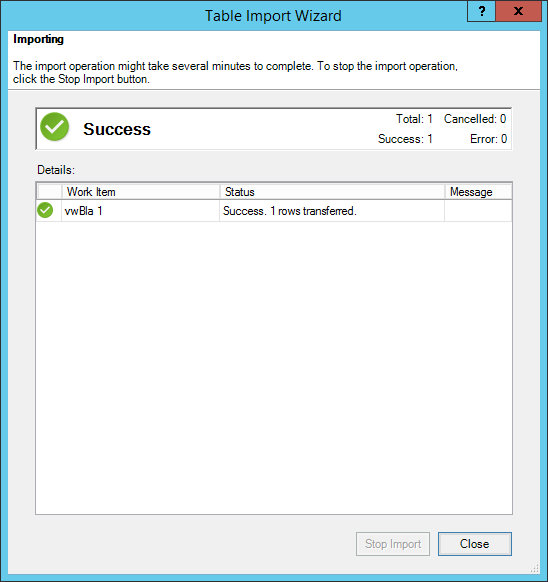
But when I run Excel/Powerpivot as a different user it works(?!):

So, there something going on with the statement "EXECUTE AS USER" in SQL Server. It differs from the "Execute as different user" in Windows. I should investigate this further but I don't have time to do this. If someone has answer to this, please add an comment under this blog. Okay, let's try another thing and run the script for TestUserB in SQL server and to make sure, run PowerPivot as another user.


3. Test the lab situation with another user

In this scenario I'll test the cross database ownership by using another TestUser, TestUserB and sees what happens with the security. What does TestUserB see?

-----------------------------------------------------------------------
-- 2. Test the setup for TestUserB
USE [CrossDatabaseA]
GO

EXECUTE AS USER = 'WIN-QTLB6QR5HC9\TestUserB';
GO

SELECT * FROM dbo.[vwBla]
GO

SELECT * FROM CrossDatabaseB.dbo.[tblBla]
GO

SELECT User_name()

REVERT;
GO

And this result in the following error messages:

Msg 229, Level 14, State 5, Line 2
The SELECT permission was denied on the object 'vwBla', database 'CrossDatabaseA', schema 'dbo'.
Msg 916, Level 14, State 1, Line 2
The server principal "WIN-QTLB6QR5HC9\TestUserB" is not able to access the database "CrossDatabaseB" under the current security context.

And with "Run as an different user" option:


Okay, this seems to be working.

4. Test the setup with the guest user

I've read on  mssqltips.com you can give access to users to a database with the guest user with Cross Database Ownership. Now when I try this I don't seem to get it working as I would believe it should be working. This is was I tried (got this from blog of nabeelshahid).

USE [CrossDatabaseB]
GO
EXEC sp_grantdbaccess 'GUEST'
GO
GRANT CONNECT to GUEST
GO

GRANT SELECT ON [tblBla] to GUEST
GO

And running the script again for user TestUserA gives the follwoing results :


The Guest user is granted CONNECT and SELECT rights on the CrossDatabaseB where the table resides and when I query the view and the table the TestUser gets all the data from the view and from the table in the other database.  On Microsoft site I find this information about the guest user:

"In SQL Server, a special user, guest, exists to permit access to a database for logins that are not mapped to a specific database user. Because any login can use the database through the guest user, it is suggested that the guest user not be enabled."

So, it seems not a best practice to use the guest user for granting right to a database if you want shield the table from viewing the data from unwanted users. I don't understand why this is suggested by the different sites.

Conclusion

In this blogpost I've described cross-database ownership and although I recieved some unexpected results I've a basis to work from and to extend in my real world situation.

Greetz,

Hennie

woensdag 21 oktober 2015

SQL : Select data from a view and secure the table (Ownership Chains)

Introduction

If you want to hide tables and you want to let the user select the data with a view in SQL Server, you can apply Ownership Chains. From Technet we learn that Ownership Chains are multiple database objects that are sequentially accessed. The ownership chains are maintained by using the same owner in the referenced objects. For example, When a view that references a table has the same owner and you grant rights only to the view to another user than the owner, the data is still shown, though the user has not explicit rights on the referenced table.


In the example above you see three objects, Object1, Object2 and Object3. When an object is accessed (eg. Object2) the owner of the current object (eg. Object2) is compared with the owner of the calling object (eg. Object1). If they are equal, the permissions on the referenced object (eg. Object2) are not evaluated (!). The ownership chain remains unbroken. Suppose that the owner of Object3 has another owner, then the ownership chain is broken and an error will happen.

Ownership chain

So the basis for Ownership chaining is that all objects has the same owner and the owner controls the access of the objects. This gives an administrator a very flexible and robust security scheme. I've worked out an example to understand this principle better. Below an example of a view that references a table. Just an simple example to understand this concept.
In the script below I've tested the different scenario's for a thorough understanding of this concept. I've create a table (tblBla) and a view (vwBla) in a database (OwnershipChainingDB). The view vwBla references the table tblBla.

The following preparation steps are taken:
  1. Create the necessary logins.
  2. Create the database.
  3. Create the table.
  4. Create the view.
  5. Setup the users.

-----------------------------------------------------------------------
-- 1. Create the necessary logins.
USE [master]
GO

DROP LOGIN [WIN-QTLB6QR5HC9\TestUserA]
GO

CREATE LOGIN [WIN-QTLB6QR5HC9\TestUserA] FROM WINDOWS WITH DEFAULT_DATABASE=[master], DEFAULT_LANGUAGE=[us_english]
GO

-----------------------------------------------------------------------
-- 2. Create database
USE master
GO 

DROP DATABASE [OwnershipChainingDB]
GO 

CREATE DATABASE [OwnershipChainingDB]
GO

-----------------------------------------------------------------------
-- 3. Create the table.

USE [OwnershipChainingDB]
GO

/*
DROP TABLE [dbo].[tblBla]
GO
*/

CREATE TABLE [dbo].[tblBla](
 [bla] [nchar](10) NULL
) ON [PRIMARY]

GO

INSERT INTO [dbo].[tblBla]
           ([bla])
     VALUES
           ('blaaaaaaa')
GO
-----------------------------------------------------------------------
-- 4. Create the view.
USE [OwnershipChainingDB]
GO

/*
DROP VIEW [dbo].[vwBla]
GO
*/

CREATE VIEW  [dbo].[vwBla] AS 
SELECT * FROM dbo.tblBla
GO

-----------------------------------------------------------------------
-- 5. Setup the users.
USE [OwnershipChainingDB]
GO

CREATE USER [WIN-QTLB6QR5HC9\TestUserA] FROM LOGIN [WIN-QTLB6QR5HC9\TestUserA]
GO

CREATE USER [WIN-QTLB6QR5HC9\TestUserB] FROM LOGIN [WIN-QTLB6QR5HC9\TestUserB]
GO

GRANT SELECT ON [vwBla] TO [WIN-QTLB6QR5HC9\TestUserA]
GO
 

The following testsituations are considerated :
  1. Test the setup for TestUserA.
  2. Test the setup for TestUserB,
  3. Test what happens when we break the owner ship chain for TestUserA.
  4. Test again what happens for TestUserB.
  5. Change the ownership of the other object too.
  6. GRANT SELECT for TestUserA


1. Test the setup for TestUserA
In this scenario I am testing the access of TestUserA to the view and the table.

-----------------------------------------------------------------------
-- 1. Test the setup for TestUserA
USE [OwnershipChainingDB]
GO

EXECUTE AS USER = 'WIN-QTLB6QR5HC9\TestUserA';
GO

SELECT * FROM dbo.[vwBla]
GO

SELECT * FROM dbo.[tblBla]
GO

SELECT User_name()

REVERT;
GO

The result is :


and

Msg 229, Level 14, State 5, Line 2
The SELECT permission was denied on the object 'tblBla', database 'OwnershipChainingDB', schema 'dbo'.

So, TestUserA has rights to select the data via the view (and therefore the underlying table) but has not direct access rights to the table.


2. Test the setup for TestUserB.
Okay, what happens when TestUserB tries to access the view and the table:

-----------------------------------------------------------------------
-- 2. Test the setup for TestUserB

EXECUTE AS USER = 'WIN-QTLB6QR5HC9\TestUserB';
GO

SELECT * FROM dbo.[vwBla]
GO

SELECT * FROM dbo.[tblBla]
GO

SELECT User_name()

REVERT;
GO

SELECT User_name()

and this results in :

and

Msg 229, Level 14, State 5, Line 2
The SELECT permission was denied on the object 'vwBla', database 'OwnershipChainingDB', schema 'dbo'.
Msg 229, Level 14, State 5, Line 2
The SELECT permission was denied on the object 'tblBla', database 'OwnershipChainingDB', schema 'dbo'.

This means that TestUserB does not have any rights on the view and no rights on the table.


3. Test what happens when we break the owner ship chain for TestUserA.
In this testsituation we have changed the owner of tblBla to TestUserB. So the ownership chain has broken.

USE [OwnershipChainingDB]
GO

ALTER AUTHORIZATION ON [tblBla] TO [WIN-QTLB6QR5HC9\TestUserB]
GO

EXECUTE AS USER = 'WIN-QTLB6QR5HC9\TestUserA';
GO

SELECT * FROM dbo.[vwBla]
GO

SELECT * FROM dbo.[tblBla]
GO

SELECT User_name()

REVERT;
GO

and this results in :


and

Msg 229, Level 14, State 5, Line 2
The SELECT permission was denied on the object 'tblBla', database 'OwnershipChainingDB', schema 'dbo'.
Msg 229, Level 14, State 5, Line 2
The SELECT permission was denied on the object 'tblBla', database 'OwnershipChainingDB', schema 'dbo'.

The Ownership chain has broken. You can also check this with the script:

 USE [OwnershipChainingDB];
GO
SELECT 'OBJECT' AS entity_type
    ,USER_NAME(OBJECTPROPERTY(object_id, 'OwnerId')) AS owner_name
    ,name 
FROM sys.objects WHERE SCHEMA_NAME(schema_id) = 'dbo'

resulting in :


4. Test again what happens for TestUserB.
In this scenario we test the changed ownership of TestUserB. The owner of table tblBla has changed from TestUserA to TestUserB and let's see what happens to TestUserB.

-----------------------------------------------------------------------
-- 4. Test again the setup for TestUserB
EXECUTE AS USER = 'WIN-QTLB6QR5HC9\TestUserB';
GO

SELECT * FROM dbo.[vwBla]
GO

SELECT * FROM dbo.[tblBla]
GO

SELECT User_name()

REVERT;
GO

and this results in :


Msg 229, Level 14, State 5, Line 2
The SELECT permission was denied on the object 'vwBla', database 'OwnershipChainingDB', schema 'dbo'.

In this scenario we see that the user TestUserB has no rights on the view.


5. Change the ownership of the other object (vwBla) too.
In this scenario we change the ownership of the view vwBla to TestUserB. Now the complete chain ownership has changed from TestUserA to TestUserB.

 -----------------------------------------------------------------------
-- 5. Test again the setup for TestUserB

ALTER AUTHORIZATION ON [vwBla] TO [WIN-QTLB6QR5HC9\TestUserB]
GO

EXECUTE AS USER = 'WIN-QTLB6QR5HC9\TestUserB';
GO

SELECT * FROM dbo.[vwBla]
GO

SELECT * FROM dbo.[tblBla]
GO

SELECT User_name()

REVERT;
GO


and this results in :


And the ownership is changed to TestUserB.


6.  GRANT SELECT for TestUserA
And now a final test for the user TestUserA and that is that we give GRANT SELECT rights on the view and not on the underlying table.

 -----------------------------------------------------------------------
-- 6. GRANT SELECT for TestUserA
USE [OwnershipChainingDB]
GO

GRANT SELECT ON [vwBla] TO [WIN-QTLB6QR5HC9\TestUserA]
GO

EXECUTE AS USER = 'WIN-QTLB6QR5HC9\TestUserA';
GO

SELECT * FROM dbo.[vwBla]
GO

SELECT * FROM dbo.[tblBla]
GO

SELECT User_name()

REVERT;
GO

And this results in :


And a SELECT permission error occurs, because TestUserA can retrieve data via the ownership chain (view, table) but not directly on the table.

Msg 229, Level 14, State 5, Line 2
The SELECT permission was denied on the object 'tblBla', database 'OwnershipChainingDB', schema 'dbo'.

Conclusion

In this blogpost I've investigated different scenarios in order to understand the ownership chain better. I hope that you also enjoy reading this blogpost as I did investigating and writing about it.

Greetz,
Hennie 

donderdag 15 oktober 2015

DAX : Leading zeros in DAX

Introduction

According to Wikipedia : "A leading zero is any 0 digit that comes before the first nonzero digit in a number string in positional notation.For example, James Bond's famous identifier, 007, has two leading zeros". In DAX, there is a difference between handling leading zeros when the datatype is number or it is text. You can solve this by using FORMAT and the REPL function. This is very often used in cases when the type of field of a certain sourcesystem is integer or a field that contains values without leading zeros and one field that comes from another system with leading zeros. Now, you could cast the text column to integer but that is not always possible because of dataquality issues. For instance, there are characters in the column and that is not supposed to be. Then, you have convert the other column to a column with leading zeros.

Leading zero

In case of a number field you can use the FORMAT function, this functions turns a number into a text column in PowerPivot. But you can't use the FORMAT function in case of textcolumn, nothing happens, as shown in the column "FormatonTextDoesNotWork" in the screenshot below.

This is the DAX expression that does not work on text columns:

FormatonTextDoesNotWork:=FORMAT(Table1[Number];"0000000")


So in case of a text column you can use the REPL function. This example is based on a blog of Kasper de Jonge. 

This is the DAX expression that works based on a textcolumn:

=REPT("0";10-LEN(Table1[CodeInText])) & Table1[CodeInText]

Conclusion

This is a small blog about a simple experiment with leading zeros in DAX that can be solved in different ways depending on the type of the column.

Greetz,
Hennie

zaterdag 26 september 2015

PowerPivot best practices

Introduction

In this blogpost I'll describe the best practices that I've gathered so far. I've found them in forums, sites, books, courses, etc. So all the credits goes to Rob Collie, Kasper de Jonge, Melissa Coates, Alberto Ferrari, Marco Russo, Chris Webb, Henk Vlootman and Microsoft.

General best practices

  • Practice, practie and again practice. The first best practice is from Rob Collie and that's about DAX. You can read only the books and the sites. But, you have to practice, practie and again practice. Then you will have thorough understanding of DAX. As Rob indicates, you have to practice the formulas. You simply cannot learn DAX “passively”.You need to practice, practice practice if you want to maintain the learned stuff in our memory. You can practice using your own data, or you can download one of the free databases on the web like Adventure Works and use that as your data source. 

Data model best practices

  • Avoid the usage of integer surrogate keys in relationships. If you import data from a data warehouse the surrogate keys are of a type integer and the format 20150915. This represents a unique date in the calendar table. In PowerPivot you don't do that. You should not use integere date keys. Use instead date columns.
  • Create one calendar lookup table. Use a consistent date table that you can reuse over multiple solutions.
  • Mark the calendar table as a Date table. This will enable additional date filters.  For more information, see Mark as Date Table Dialog Box.
  • Create copies of calendars when necessary. Role play lookup tables are not possible in PowerPivot. You can only reference one table from another table (and not twice or more). Therefore create multiple copies of the Calendar lookup table or you can put the date columns in separate tables and link them to the Calendar lookup table. For instance, put the order and the shipping information in separate tables
  • Layout of the diagram of the datamodel. Rob teaches that you organize the tables in so called data- and lookup tables. Lookup tables go to the top and data tables go the bottom.
  • Import only fields that are needed for the analysis. This simplifies the model and it reduces the size of the PowerPivot Workbook. Don't import:
    • Primary keys or identity columns of fact tables
    • Transaction identifiers in fact tables.
    • GUIDs and other columns used for database replication and/or auditing
    • Timestamps, date of last update, user of last update and similar columns are usually not relevant for data analysis
  • Use friendly names for tables and columns. Rename tables like tblCustFields into Customer for the ease of read.
  • Verify whether all the required relationships are there. This will enhance the processing of the DAX expressions
  • Hide unnecessary fields. Hide fields like ID's, primary keys and foreign keys and fields that are not needed in analysis of data. Think about fields that are very detailed and unique?. Are they really needed?
  • Perspective. If you want to hide fields based on conditions think about perspectives.
  • Formatting. Format the fields in the model accordingly. 
  • Sort order. Add sorting columns to fields you want to sort somehow. For instance think about days in week or months in year, or important customers first
  • Calculated columns. Use calculated columns if you want to use them in multiple places. For instance you want to concatenate firstname and lastname.
  • Hierarchies. Fields like Year, month, day are excellent candidates for a hierarchy.
  • KPI's. Use KPI's in your datamodel when you want to compare actuals with targets.
  • Calculated measure. Replace a column with a calculated measure when possible. This saves space.
  • Break columns in smaller columns. If you break columns in smaller columns and with less granularity, will enhance compression and therefore space and peroformance.
  • Transforming columns. Sometimes is granularity of the column to high, for instance an amount of 3,56543355 can be rounded to 3 or 4. This will reduce the size of the column.
  • Include a measure tables for every fact table. I heard this trick from Henk Vlootman at the SQL Saturday in Utrecht (September 26, 2015). Separate the calculated measure from the fact table. When there are problems with the data in the fact table, then perhaps you want to throw the fact table away. With the Measure table you have the calculated measures separated and you kept them in your workbook.

DAX Expression best practices

  • Build DAX formulas not in one single step but build it in components. If the Formula is too big it can be hard to find the problem. As Rob says on his website:  "If you chop the problem up into manageable pieces, you can incrementally build the measure one piece at a time, and finally assemble the finished masterpiece at the end." 
  • Assign the calculated measure to the table where math is done!


Excel best practices

  • Autofit column widths on update. It's important to set option "Autofit column widths on update" in order to make sure that changes that are made to the sheet nor uining the the layout of the PivotTable.
  • Use the name Model in the filename. When saving the file, you may wish to include the word “Model” in the name. For example, “Sales Forecast Model” lets users know that within this xlsx file is a PowerPivot model. This helps when viewing the PowerPivot Gallery SharePoint, which contains both models and reports.
  • Document underlying model in Excel. Depending on the complexity level of the data model, and how well versed users are with the data, you might consider using an Excel worksheet as a place for documentation about the underlying model.
  • Hide or Delete unused or unneeded Excel worksheet tabs. Just make sure you don’t delete the worksheets that PowerPivot added for any PivotCharts you have added. Doing so, you will find that they no longer respond to slicer actions. instead, just right-click on these and select “Hide”. Also hide helper sheets like instant categories, list or values that are needed for disconnected slicers.

Test best practices

  • Excel Data Visualization. Even if users will be developing their own independent Excel & Power View reports from your data model, they may find an Excel worksheet of data visualization to be very helpful to get started reporting on the underlying data model.
  • Excel Testing. Test the data model using Excel as the reporting tool. Because the data model and Excel data visualization are linked together via the Excel file, it’s very easy to iteratively go back and forth between windows to finalize the data model.
  • Power View Testing. Test the data model using Power View as the reporting tool (if you have SharePoint 2010/2013 and Power View available in your environment, or a business edition of Excel 2013).

Naming Convention

  • Rob Collie : Always add a table name before a column name, and never add a table name before a measure name/calculated field.
    • Column reference:  Table[Column Name
    • Measure Reference:  [measure name]

Dashboard layout

  • Autofit column widths on Update. You have columns sized the way you want them to display the proper length, right-click on the PivotChart, and select “PivotTable Options”, here Uncheck the “Autofit column widths on Update” option and make sure the “Preserve cell formatting on update” option is selected as seen below.  This will make sure your screen is dancing around on refreshes changing the size of columns, etc.
  • Don’t move or size with cells. Same thing with PivotCharts – right-click on the graph, and select “Format Chart Area”, and select “Don’t move or size with cells” so that any resizing that does happen doesn’t shrink or stretch your graph.

Useful resources


Conclusion

I've gathered quite some best practices and probably I haven't mentioned most of them. Most of them are still out there. But when I found them I'll add them here..

zondag 13 september 2015

DAX : Calculating monthly sales changes

Introduction

In my former blogpost about PQM analysis I've talked about the PQM analysis and how you can use the SUMX function to calculate the revenue by multiplying two columns : Quantity and Price. In this blogpost I want to calculate the monthly changes in sales.

Current situation

I've created a simple Calendar lookup table for analyzing the Sales data with a Date Column that is different than I'm used to built in data warehouse project. In data warehouse project you create a surrogate key like 20150908 and use this as a PK -FK relation between two tables. In PowerPivot you join on a normal dates like 8-9-2015. This is a best practice!


In the Sales data table I've created a date column as a calculated column (not field) and based on this column I join the SalesPeriodDate column with the calendar table (DateKey).


=DATE(Sales[Year]; Sales[Period];"01")
 

In the following diagram a representation of the join is presented:


I've already created a Sales Calculated Field with SUMX (see my former post):


TotalSales:=SUMX(Sales; Sales[Price] * Sales[Quantity])


The next step is creating a previous month calculated field, SalesPrevMonth :

       
SalesPrevMonth:=CALCULATE([TotalSales];DATEADD(Calendar[DateKey]; -1; month))
 

This resets the current filter context to the previous month and this results in the following data:


And here you can see the current month sales compared with the previous month. Now, We can calculate the variance in the monthly sales compared to the sales of the previous month.

       
 %CurrentPrevMonthSales:=DIVIDE([TotalSales] - [SalesPrevMonth]; [TotalSales])


Now let's take a look at the percentage of monthly changes :


And here you can see the monthly changes in percentage. I didn't like the 100 % in the month January and therefore I included a test whther SalesPrevMonth is empty. I adjusted the DAX expression a bit:

       
%CurrentPrevMonthSales:=IF(
                          NOT(ISBLANK([SalesPrevMonth]));
                          DIVIDE([TotalSales] - [SalesPrevMonth]; [TotalSales])
                          )

And now the result is this:


And now the calculation is disappeared for the column January. I can also calculate this per product ( I removed february and August):


Conclusions

With simple calculations you can have powerful insights.

Greetz,

Hennie